Back Office Automation: A Function-by-Function Playbook for Growing Companies


As a company grows, back office automation helps teams handle rising volumes of routine work without adding the same amount of administrative effort. Finance, HR, document handling, order administration, and approvals often rely on manual steps that become harder to coordinate as the business expands.
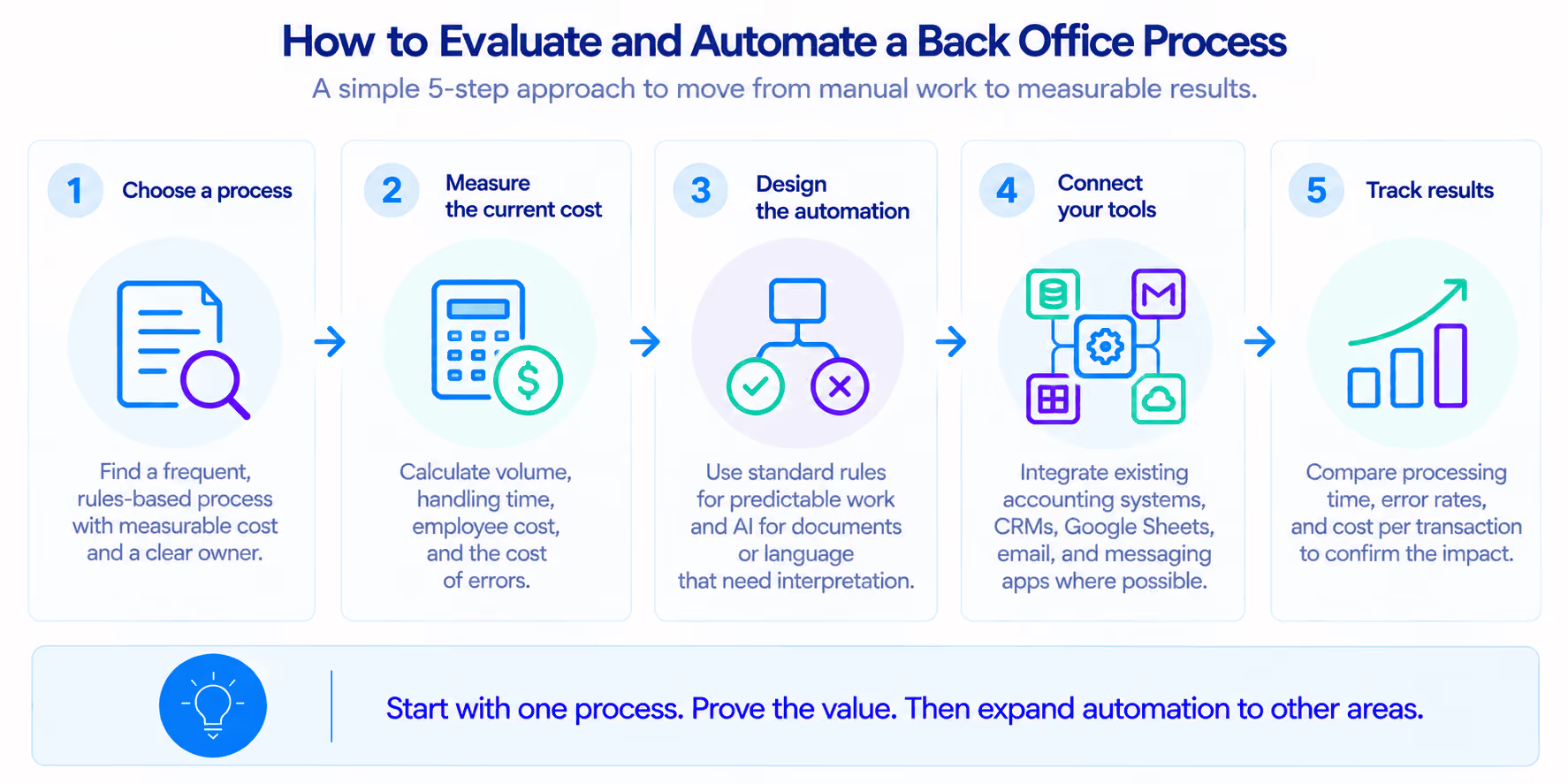
A successful back office process automation project starts with a repeatable workflow, a clear owner, and a way to measure the current cost. From there, teams can decide whether integrations, rules-based workflows, or AI will deliver the best results. The right approach depends on the process, the tools already in use, and the level of complexity involved.
Key takeaways
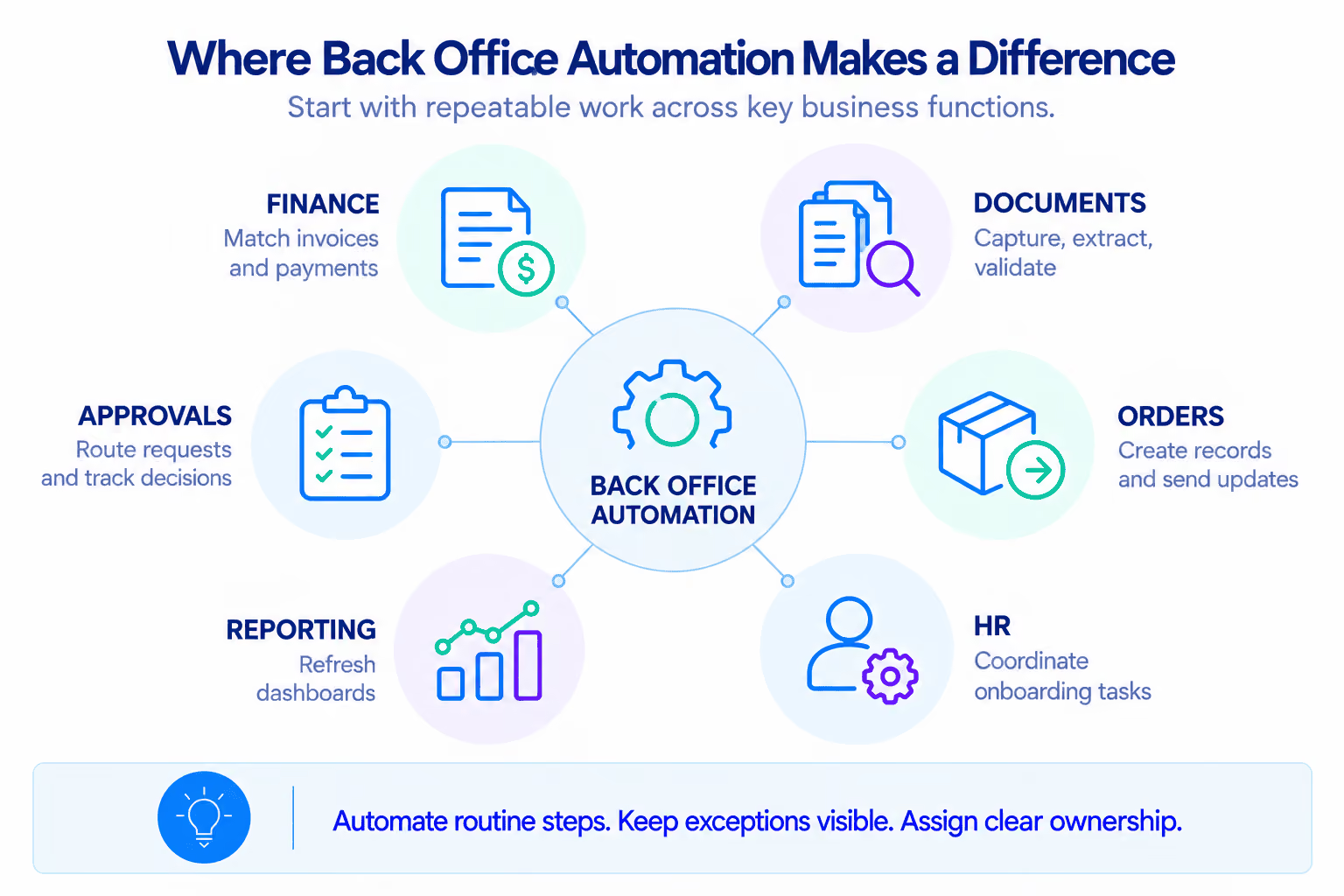
- Back-office work includes finance, procurement, order administration, documents, HR, approvals, and reporting.
- Measure transaction volume, handling time, employee cost, and the cost of mistakes before choosing a tool.
- Use predictable rules for predictable work; use AI when documents or language need interpretation.
- Keep people responsible for high-impact decisions and unusual cases.
- A pilot should improve cycle time, manual touches, errors, or hours returned to the team.
What counts as the back office in a company of 10–200 people?
A well-defined back office process helps teams handle routine work consistently and makes ownership, status, and exceptions easier to track. Before introducing automation, assign a responsible owner and establish a baseline for processing time, errors, and operating costs.
Back office operations cover finance, procurement, order administration, documents, HR, reporting, and approvals. In a small company, a few generalists may manage several operations.
Why back-office work is automated last and what it costs
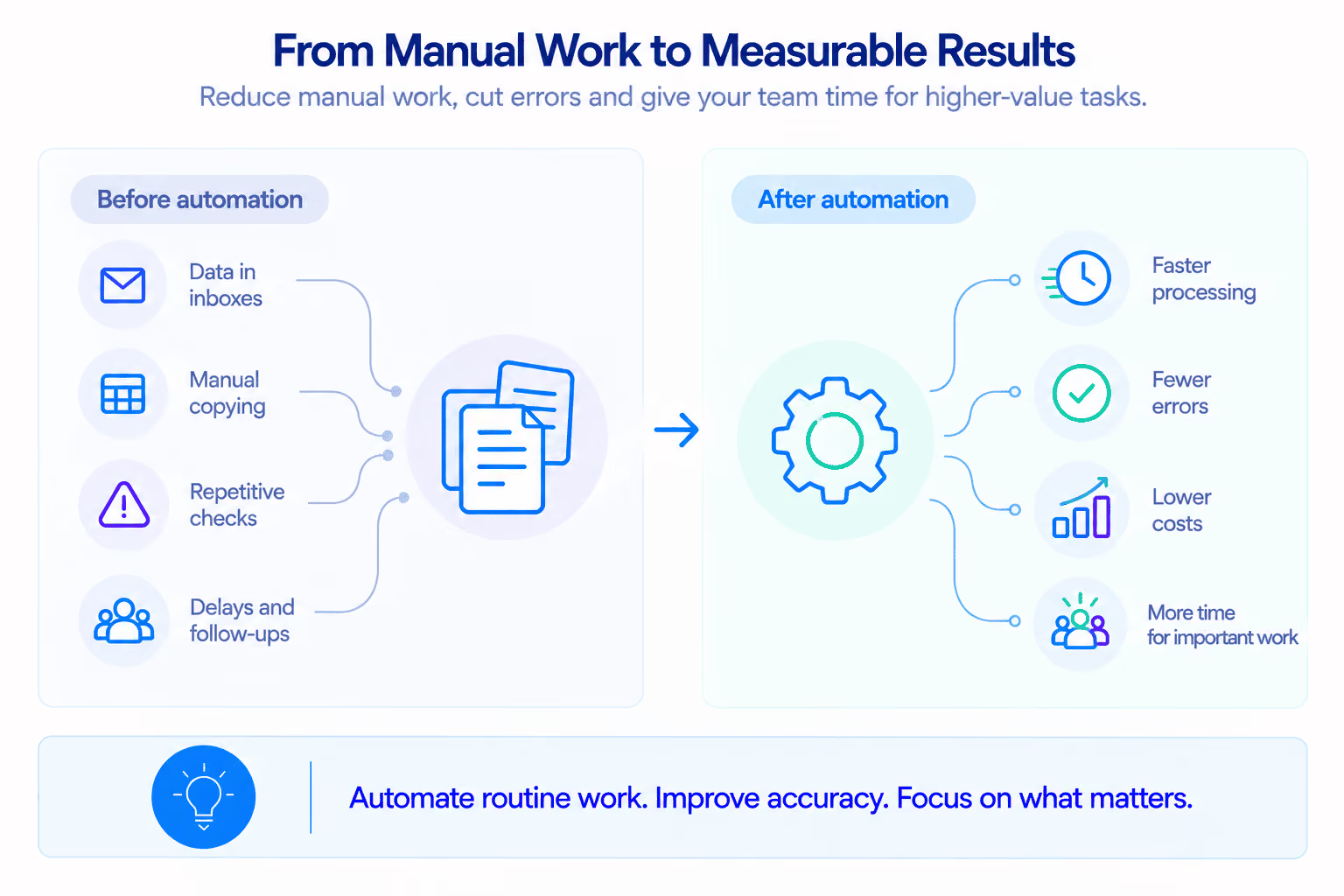
The impact of customer-facing automation can be easier to measure through customer experience and revenue metrics. Meanwhile, manual work inside the business may appear manageable when its costs are spread across inboxes, spreadsheets, and multiple teams.
As volume grows, companies may hire another coordinator while each transaction still requires the same copying and checking. Back office process automation can help reduce this workload, so experienced staff spend less time correcting routine work and more time handling exceptions. See operational debt and business growth for how these costs compound.
The client onboarding case study illustrates the impact of automating manual coordination. For Be Known, the workflow reduced onboarding time by 95%, from up to two weeks to under 15 minutes. It also freed up more than 40 hours per month for strategic work and generated approximately $18,000 in annual savings.
Calculate the cost of a manual process in one evening
To calculate the cost of a manual back office process, see automation ROI and cost-benefit analysis. Choose one process and gather four inputs:
- Monthly volume: Transactions handled.
- Minutes per transaction: Include checks, follow-up, and corrections.
- Loaded hourly rate: Employee cost, including applicable employer costs.
- Cost of errors: Correction time, fees, delays, or write-offs.
Monthly handling cost = transactions per month × minutes per transaction ÷ 60 × hourly employee cost
Monthly error cost = errors per month × average cost per error
Example: 800 invoices × 6 minutes ÷ 60 × $30 per hour = $2,400 monthly. If 2% require a 20-minute correction, that adds $160 in labor, before fees or delays.
Back office automation by function
Business process automation is easier to assess when each workflow has a clear starting point, expected result, owner, and measurable baseline.
1. Document management: from inbox to validated record
See the guide to data entry automation with AI parsing for the document-to-record challenge. Document workflow automation starts with files received by email, forms, or messaging apps. A typical flow is:
- Capture: Monitor an approved inbox or form and retain the original.
- Recognize: Identify invoices, purchase orders, receipts, or contracts.
- Extract: Capture supplier details, invoice identifiers, dates, and financial fields.
- Validate: Check required fields, totals, duplicates, and purchase-order matches.
- Route: Send valid records to accounting and uncertain cases to review.
- Confirm: Log the result and notify the owner about missing information or system failures.
Document workflow automation captures files, extracts relevant information, and routes records to the right destination. Data entry automation can handle repeatable fields, while records with missing information, inconsistent totals, or uncertain values should be sent for human review.
For businesses processing large volumes of invoices, Data Extraction & Recognition supports document workflow automation by extracting information from files and preparing it for further processing. In one contractor workflow automation project, Atomic Actions connected existing tools and set up a workflow that flags unusual invoice entries for review.
2. Order processing: from request to confirmation
Order processing often crosses sales, operations, finance, and fulfillment. Order processing automation can validate required fields, create or update the order, assign an owner, and send confirmation. It can also notify fulfillment when payment or stock checks pass and share status updates with the customer. Hold orders with missing addresses, conflicting prices, or unavailable stock for human review; retain the original request if a connected system fails.
3. Finance: reconciliation and month-end preparation
Back office finance automation suits recurring, structured tasks: gathering transaction exports, matching payments to invoices, checking duplicates, preparing schedules, and assembling month-end data.
A workflow can standardize dates and identifiers, match records by agreed rules, and list unmatched items for review. Keep an audit trail and leave disputed amounts or supplier records to finance.
4. HR and employee onboarding
HR process automation can coordinate onboarding after the start date: request documents, notify IT, and track training and outstanding tasks.
5. Reporting: from exports to a live dashboard
Back office operations often rely on data from the CRM, accounting software, and Google Sheets. To make those reports useful, define which system provides each metric, how records are matched, how often the data is updated, and who investigates discrepancies. Apps & Dashboards can help bring key information into a shared view, while Business Optimization & Analytics focuses on identifying bottlenecks and understanding where processes need attention.
6. Approvals and routing
Requests buried in email and chat are easy to miss. Define required information, approval thresholds, responsible roles, and deadlines. Route requests to the right approver, with a named delegate for absences. Never approve automatically because someone is unavailable. Log decisions, send reminders, and escalate overdue requests.
Choose the right level of automation
Back office automation software can range from a simple integration to a role-based internal application.
Connecting two tools may be all you need to automate a specific task. But when teams rely on separate systems to manage customers, finances, and day-to-day work, adding more integrations can make it harder to keep information and responsibilities aligned. In these cases, a Central Hub for growing SMBs offers a broader approach, bringing key workflows and information into one place.
Keep Google Sheets, email, and messaging in the workflow
Back office automation software can extract data from emailed PDF invoices and create review tasks in Google Sheets or a finance queue. Staff can continue emailing suppliers and discussing exceptions in chat, while decisions and status updates are tracked in one place.
Back office operations should not rely on chat as the only approval record or on multiple spreadsheets with conflicting data. Keep familiar tools where they work, define a single source of truth for each critical field, and assign clear ownership.
Where AI helps and where a normal scenario is better
Use standard business process automation for clear rules: due-date reminders, approved onboarding checklists, or dispatch notifications.
AI should not invent policy, change payment details, or make irreversible decisions without controls.
Human-in-the-loop: where people must confirm
Require human review for uncertain extraction, financial mismatches, unusual payments, policy exceptions, and requests above approval thresholds. Show the source beside extracted fields, explain validation failures, and offer Approve, Edit, Reject, or Request information.
Design for exceptions and system failures
The guide to workflow design, edge cases, and process reliability covers failure paths and recovery. Plan for incomplete forms, unexpected formats, duplicates, conflicting values, and unavailable systems.
- Missing or unsupported document: Keep the original, record the reason, and request a supported file or review.
- Conflicting data: Hold the transaction and show values side by side.
- Duplicate submission: Check a stable identifier and prevent duplicate records or payments.
- Unavailable system: Retry with a limit, log the failure, and alert the owner.
- Partial completion: Record successful steps so a retry does not repeat them.
- Unassigned exception: Route to a named queue with an owner and deadline.
Which processes should not be automated yet?
Automation is a poor fit when rules change case by case or nobody owns the outcome. When these issues remain unresolved, automated workflows often send more cases to manual review, fail on unexpected inputs, or produce records that staff must correct. If employees cannot trust the output or do not know how to handle exceptions, they may return to spreadsheets, email, and manual checks. Fixing the underlying process, assigning ownership, and testing edge cases before business process automation begins helps prevent this regression.
Pause when employees follow inconsistent procedures, source data is unreliable, or the process lacks clear rules and ownership. Also wait if transaction volume does not justify maintenance or the team cannot provide access, test cases, and timely feedback.
Observe real work, handoffs, and exceptions. Simplify the process and agree on ownership before implementation. Read why operational discovery should come before implementation and business process optimization and workflow redesign.
Measure the result, not the number of automations
Business process automation should be measured against a baseline before and after the pilot handles normal volume and exceptions.
Include review, maintenance, and correction time when estimating hours saved and assessing back office efficiency.
A practical 3–6 week implementation plan
A first process may fit into three to six weeks if scope, access, and decisions are clear.
A successful pilot has an owner, baseline, bounded scope, exception tests, and evidence of improvement. The article on business operating systems after workflow automation explains when separate automations need a more connected operational foundation.
Common mistakes that send work back to manual handling
The most common mistake is automating a broken process. Three safeguards help:
- Fix the process first. Map real steps, remove unnecessary checks, define required information, and agree on exceptions.
- Name an owner. One person is accountable for rules, access, performance, and escalation.
- Train the team. Explain what changed, what needs review, how to report issues, and what to do during an outage.
Avoid overbuilding the first version, hiding exceptions, using AI where standard rules would work, or neglecting maintenance. As workflows become more complex, review whether existing automations still meet operational needs before adding new layers of logic or maintenance. The business management system case study shows the impact of connected workflows: 100% centralized client operations, 60% less manager time spent on onboarding, around 70% of client questions resolved by AI, and 100% invoice automation.
The right approach depends on where the process breaks down. Robotic Process Automation can handle repetitive, rule-based tasks, while AI Agents can help with tasks that require interpretation. If your needs extend across teams, tools, and IT operations, IT Department as a Service can provide broader support. Not sure where to start? Contact Atomic Actions to discuss your workflows and identify the right approach for your business.
FAQ
What is back office automation?
Back office automation uses integrations, workflow rules, document recognition, and sometimes AI to reduce repetitive work in finance, procurement, HR, order administration, and reporting.
Which process should we automate first?
Start with a frequent, rules-based back office process that takes significant staff time or causes recurring errors. Back office process automation works best when responsibilities are clear and results can be measured. Track processing time, costs, and error rates to identify the best starting point.
Do we need to replace our current software?
Back office automation software can often connect existing accounting systems, CRMs, Google Sheets, email, and messaging apps. Integrations can transfer data and trigger actions without replacing familiar tools. If a simple connection solves the problem, there is no need to build a new application.
When should we use AI instead of a standard workflow?
Use standard workflows for predictable tasks such as routing requests, calculations, reminders, and status updates. AI is more useful when back office automation involves interpreting documents, classifying messages, or handling unstructured information. Human review should remain in place for uncertain results and high-impact decisions.
How do we calculate return on investment?
Start by measuring transaction volume, minutes per transaction, loaded hourly cost, and correction costs. Compare the current cost of manual work with implementation and maintenance expenses to estimate the return on back office process automation. After launch, track time saved, error rates, and cost per transaction to see whether the investment delivers measurable results.
How do you keep back office automation reliable?
Reliable back office automation requires clear rules, validation checks, and a defined process for handling exceptions. Assign an owner to monitor failures, review unusual transactions, and maintain integrations. Test incomplete data, duplicate submissions, and unavailable systems before launch. Regular monitoring helps maintain back office efficiency as business processes and transaction volumes change.
You might also like